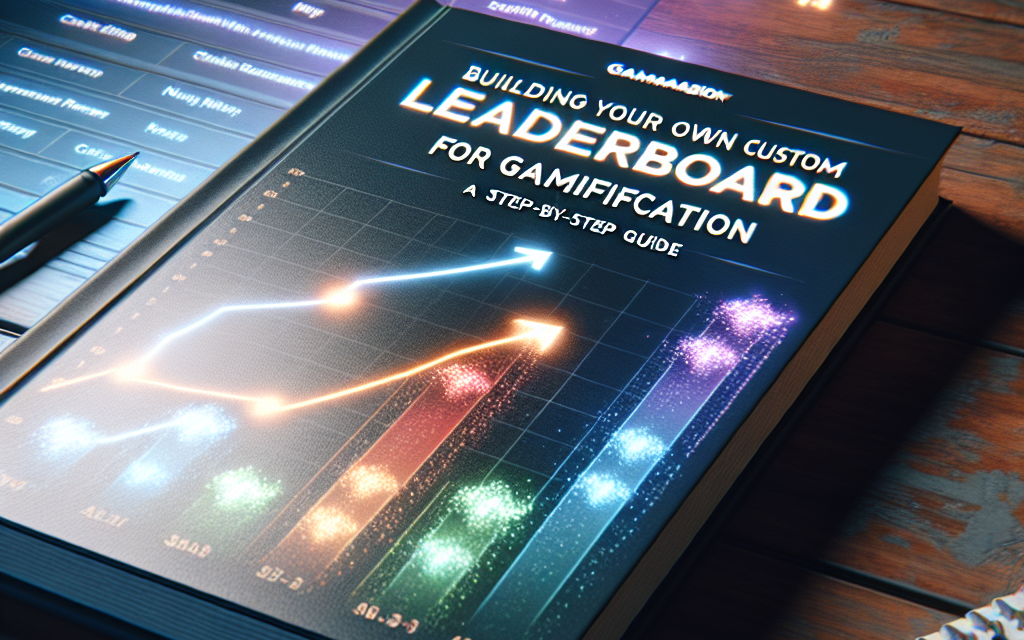
Gamification has become a powerful tool for enhancing user engagement, particularly on websites and applications. One effective way to incorporate gamification into your WordPress site is through a custom leaderboard. This guide will walk you through the steps to build your own leaderboard, allowing you to foster competition among users and reward them for their engagement.
Why Create a Custom Leaderboard?
A leaderboard can help increase user interaction by:
- Encouraging Competition: Users are motivated to engage more to climb the rankings.
- Enhancing User Experience: A visually engaging leaderboard can make your site more dynamic.
- Rewarding Engagement: By recognizing top users, you create a sense of accomplishment.
Step 1: Choose the Right Plugin
First, you’ll need a plugin to help manage the leaderboard. Some popular options include:
- MyCred: A popular plugin that gives you full control over virtual points system and rankings.
- WP User Points: This allows you to award points based on user activity and display rankings.
You can find these plugins within the WordPress Plugin Repository.
Step 2: Install and Activate the Plugin
- Navigate to your WordPress Dashboard.
- Go to Plugins > Add New.
- Search for your chosen leaderboard plugin.
- Click Install Now and then Activate.
Step 3: Configure the Plugin Settings
Each plugin will have its own unique settings. Here’s a basic guideline:
- Go to the plugin settings page from your Dashboard.
- Configure the point allocation rules (e.g., points for posts, comments, and likes).
- Customize the display settings for the leaderboard (e.g., color, layout, and position on your site).
- Save your changes.
Step 4: Create Your Leaderboard Page
You can create a dedicated page for your leaderboard:
- Navigate to Pages > Add New.
- Title your page (e.g., “Leaderboard”).
- Use the shortcode provided by your plugin to display the leaderboard (e.g.,
[mycred_leaderboard]for MyCred). - Publish the page.
Step 5: Promote and Encourage Participation
Let your users know about the new leaderboard feature:
- Share it on social media.
- Include a post or announcement in your newsletter.
- Use pop-ups or banners on your site to highlight the leaderboard and encourage participation.
Step 6: Monitor and Adjust
After launching your leaderboard, monitor:
- User engagement levels.
- Feedback from users concerning the leaderboard experience.
- Any necessary adjustments to point allocation and display settings.
Conclusion
Creating a custom leaderboard is a fantastic way to gamify your WordPress site and motivate your users. By following this step-by-step guide, you can implement a system that not only enhances user interaction but also rewards your most engaged users.
Call to Action: Explore WafaTech NextGen WordPress
If you’re looking to optimize your WordPress site further and take advantage of powerful hosting solutions, consider WafaTech NextGen WordPress hosting. With tailored services and high-performance infrastructure, you’re only a few steps away from achieving your website goals.
For more details, check out WafaTech WordPress Hosting.
Get started today and elevate your WordPress experience!