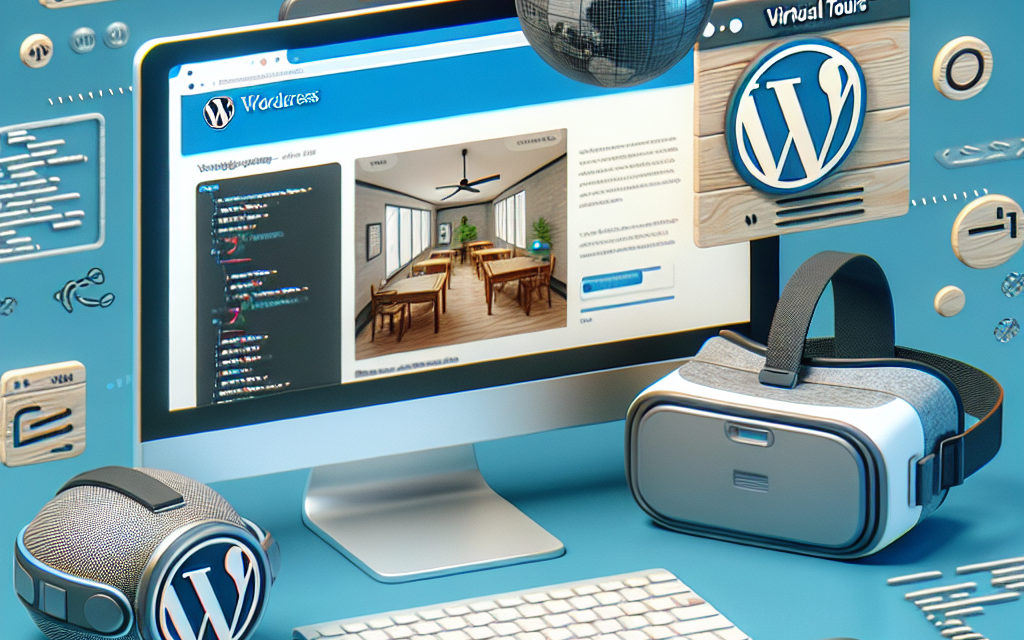
In today’s digital age, engaging your audience and providing an immersive experience has become more essential for businesses and content creators. One effective way to achieve this is by integrating virtual tours into your WordPress site. Whether you’re showcasing a real estate property, a hotel, a retail store, or even an artistic gallery, virtual tours can significantly enhance user experience, driving engagement and conversions. In this article, we’ll walk you through the steps to implement virtual tours on your WordPress site and explore some of the best tools available.
What is a Virtual Tour?
A virtual tour is a simulation of an existing location, typically utilizing a sequence of images or videos combined with 360-degree views. It allows users to navigate through a space remotely, offering an interactive experience that static images simply can’t match.
Why Should You Consider Virtual Tours?
- Enhance User Engagement: Virtual tours keep visitors on your website longer and encourage interactions.
- Showcase Your Space: Highlight unique features that photos alone can’t convey.
- Boost SEO: Engaging content can improve your search engine rankings.
- Increase Conversion Rates: Visitors can make informed decisions faster, leading to higher conversion rates for bookings or purchases.
Step-by-Step Guide to Integrating Virtual Tours
1. Choose the Right Plugin
The first step to adding virtual tours to your WordPress site is choosing the right plugin. Here are a few popular options:
- WP VR: This plugin allows you to create 360-degree virtual tours easily without the need for coding.
- 360 Panorama: Ideal for mobile sites, it provides a simple way to display panoramic photos.
- WP VR View: A lightweight plugin for embedding 360-degree images and videos from Google.
You can find more plugins through the official WordPress plugin directory.
2. Create Your Virtual Tour Content
Before integrating a virtual tour, you need the content. This can be done by:
- Using a 360 Camera: Capture panoramic images or videos using a 360 camera.
- Creating a Video Tour: Record a guided tour of the space and upload it to platforms like YouTube.
- Using Interactive Floor Plans: Tools like Matterport allow you to create captivating virtual tours with interactive elements.
3. Upload Your Media
Once you have your media ready, upload it to the WordPress media library. Make sure to optimize your images and videos for web use to ensure fast load times.
4. Embed the Virtual Tour
Now that you have your media ready, use the chosen plugin to create your virtual tour:
-
Install and Activate the Plugin: Go to the Plugins section of your WordPress dashboard, search for your chosen plugin, and click “Install Now.”
-
Create a New Tour: Most plugins will have a dedicated section where you can start creating a new tour or panorama.
-
Add Your Media: Follow the instructions to upload or link to your 360-degree images or videos.
-
Embed the Tour on a Page: The plugin will usually provide a shortcode that you can paste into the page or post where you want the virtual tour to appear.
5. Test the Tour
Before going live, test the virtual tour on multiple devices (desktop, tablet, and mobile) to ensure it provides a seamless experience across all platforms.
6. Promote Your Virtual Tour
Once you have embedded your virtual tour, promote it across your social media channels, newsletters, and on your homepage. Consider providing a blog post detailing the experience, as this can also help with SEO.
Conclusion
Integrating virtual tours into your WordPress site can dramatically enhance the user experience, making it an engaging and informative experience for your visitors. By leveraging the right tools and following the steps outlined, you’ll create an interactive platform that captivates your audience.
Ready to Elevate Your WordPress Experience?
For businesses looking to take their WordPress experience to the next level, consider exploring WafaTech’s NextGen WordPress Hosting solutions. With unparalleled support and performance optimizations, you can create a standout website and enhance your users’ experience even further.
Learn more about WafaTech’s NextGen WordPress Hosting here.
Feel free to reach out if you have further inquiries or would like assistance in setting up your virtual tour!
For more resources, don’t forget to check the WordPress Documentation for any integration questions you may have.